Apache Guacamole
About Apache Guacamole
Apache Guacamole is a clientless remote desktop gateway that allows you to access computers from anywhere using just a web browser. Unlike traditional remote desktop tools that require you to install a viewer on your local machine, Guacamole runs on a server and translates remote protocols into HTML5. This means you can access your machines from any device—laptop, tablet, or phone—without needing plugins or client software.
It acts as a centralized bridge for standard protocols like VNC, RDP, and SSH. Because the Guacamole server sits in the middle, it provides a layer of security and convenience; you can keep your target machines isolated on a private network while exposing only the Guacamole web interface to the outside world. This makes it an excellent tool for managing cloud servers or home labs securely without setting up complex VPNs for every client device.
Why I use Guacamole
I like to use Apache Guacamole for its ease of use and feature set. My favorite features are the ability to have a centralized remote desktop server accessible over a webUI. I don’t expose it over the internet but by using my VPN, I can have access to all of my servers and endpoints from anyone of my computer without remembering passwords and IP address. Before I found Apache Guacamole, I would add the same RDP settings to several different computers. It wasn’t overly difficult, but I did become tedious if I change the IP address of one or shutdown my Ubuntu server to switch to Debian. The next feature that stood out to me was the ability to add users and groups that can only access services that they have permissions for. My boss is in the cyber division of the National Guard and I found out after using Guacamole for a few years that the National Guard uses it when the build their training missions. Guacamole also integrates with OpenID Connect services so I can add it to my Authentik instance for single sign-on as well.
Dashboard
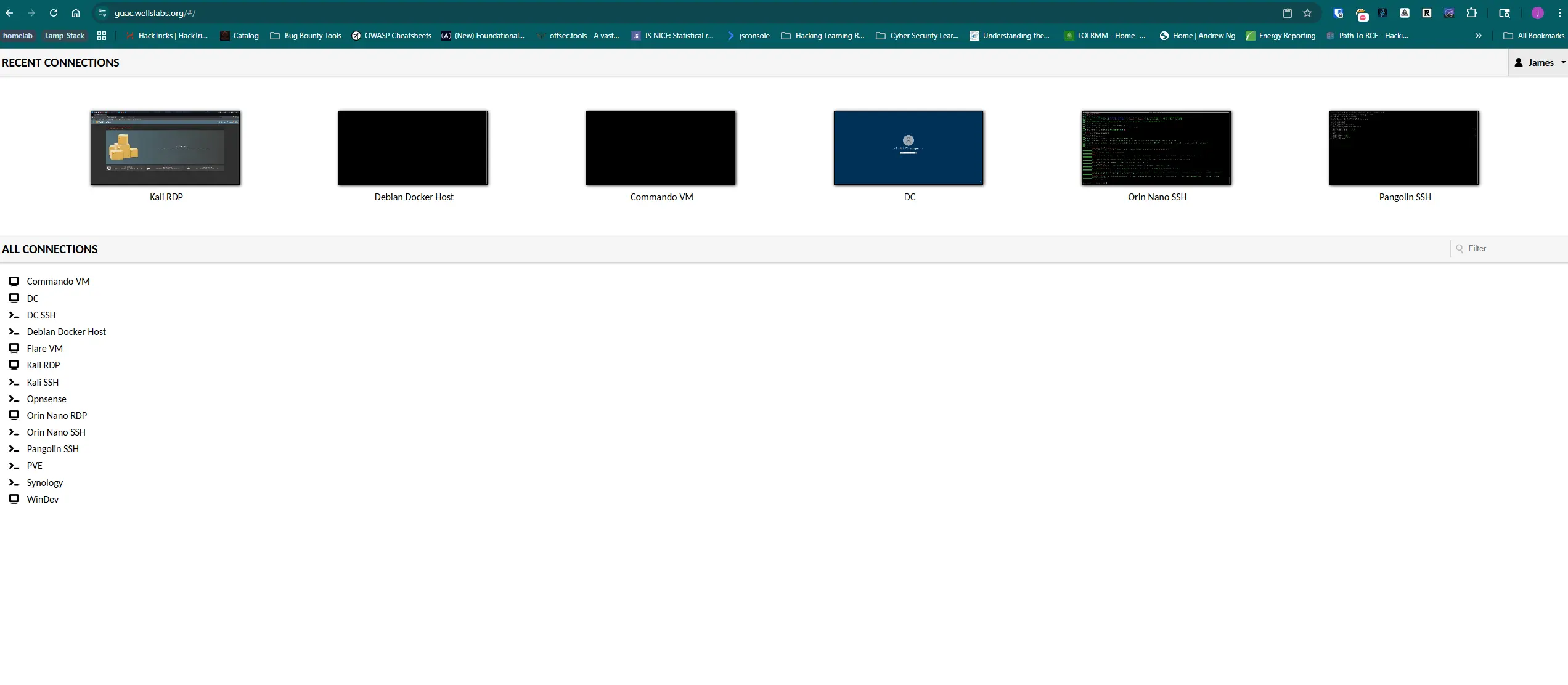
The dashboard allows you to quickly access your last session and find any connection that you want to use.
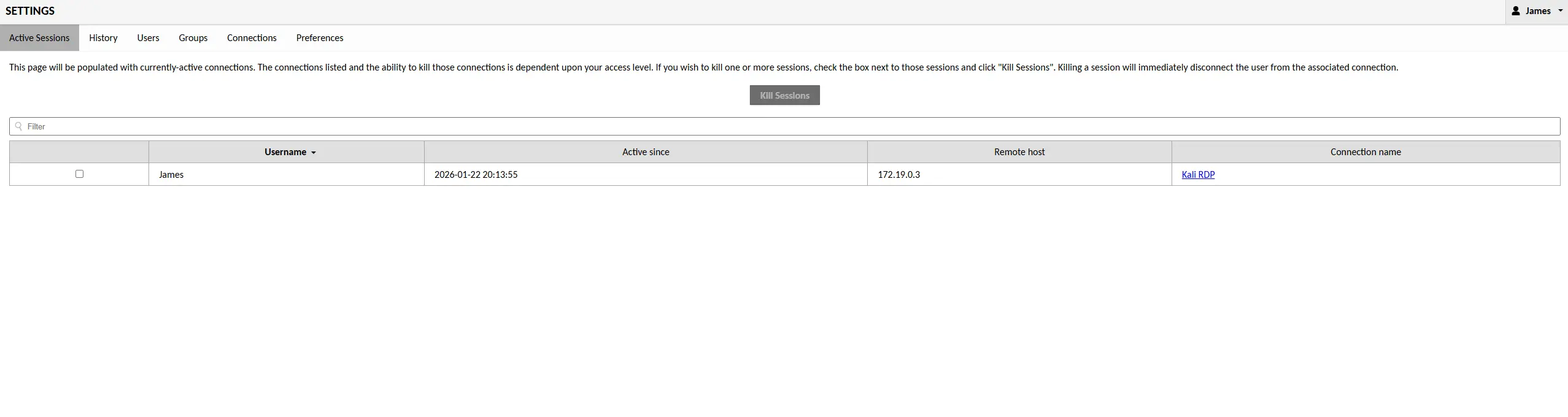
The active sessions view shows all currently connected users and what they’re accessing. This is particularly useful for administrators who need to monitor usage or troubleshoot connection issues.
Drive Mapping
One of the most practical features of Guacamole is drive mapping, which allows you to transfer files between your local machine and the remote session. When you connect to an RDP session, you can enable drive redirection to share a virtual drive with the remote system.
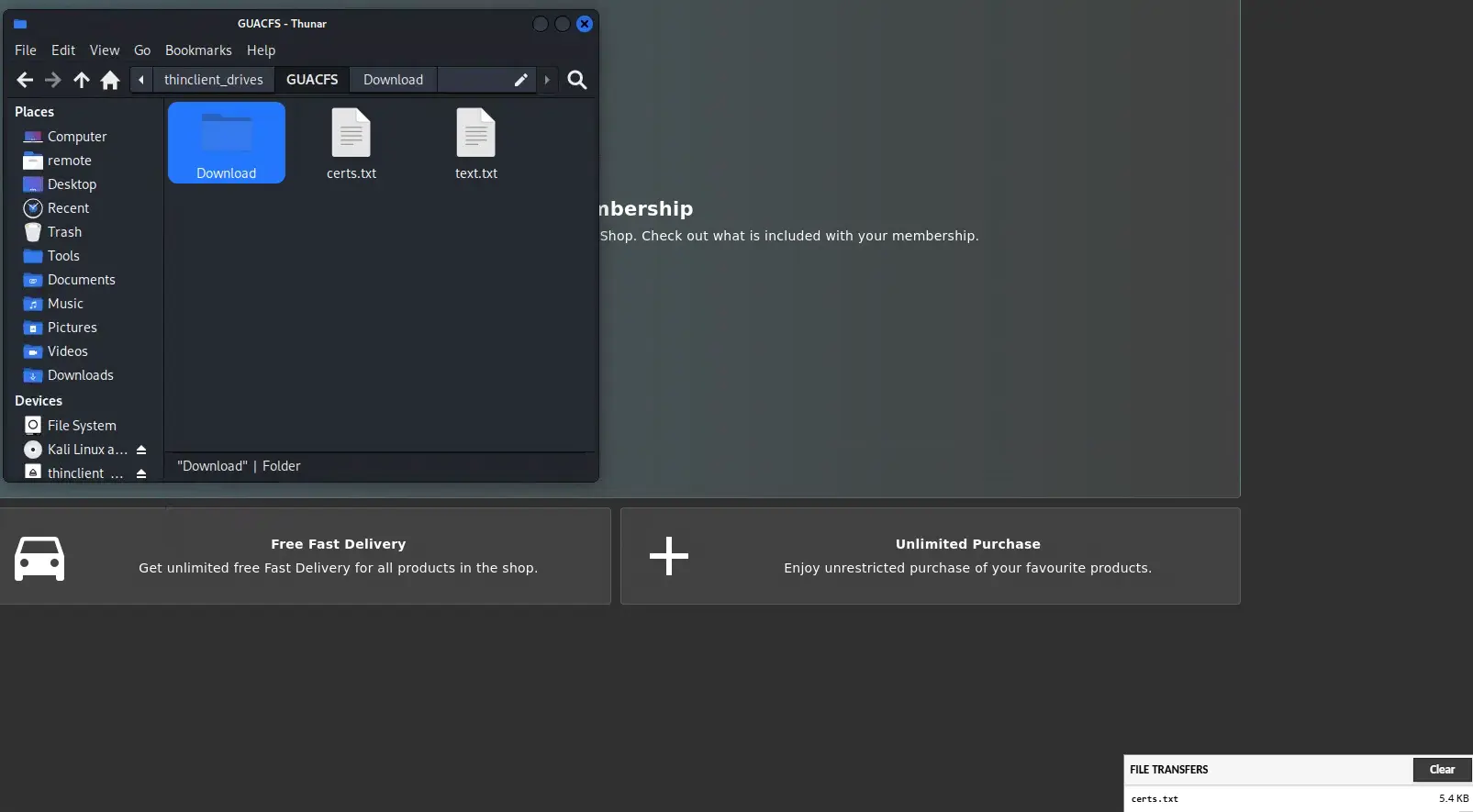
This virtual drive appears in the remote session’s file explorer, making it easy to upload malware samples for analysis or download reports and artifacts. You simply drag and drop files through the Guacamole interface, and they become available on the remote machine. This eliminates the need for setting up separate file sharing services or using external tools to move files around.
Typescript Recording
For SSH and telnet connections, Guacamole offers typescript recording. This feature captures all terminal input and output as a text-based session log that can be replayed later. This setting is only used for CLI sessions like SSH or Telnet.
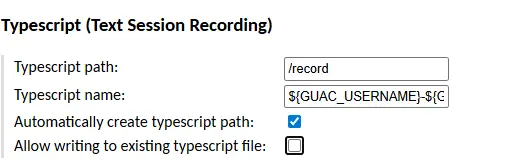
When enabled, every command you type and every response from the server gets recorded. This is incredibly useful for documentation, auditing, and training purposes. You can review exactly what commands were executed during a session without having to remember to manually log everything.
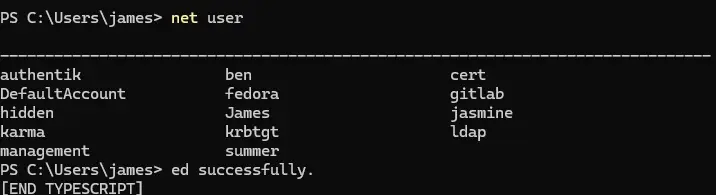
The typescript recordings can be configured to include timestamps and can be stored in a designated directory on the Guacamole server for later review. My recording as stored in a directory beside the directory that stores the video recordings. This allows me to quickly find either recording type.
Session History
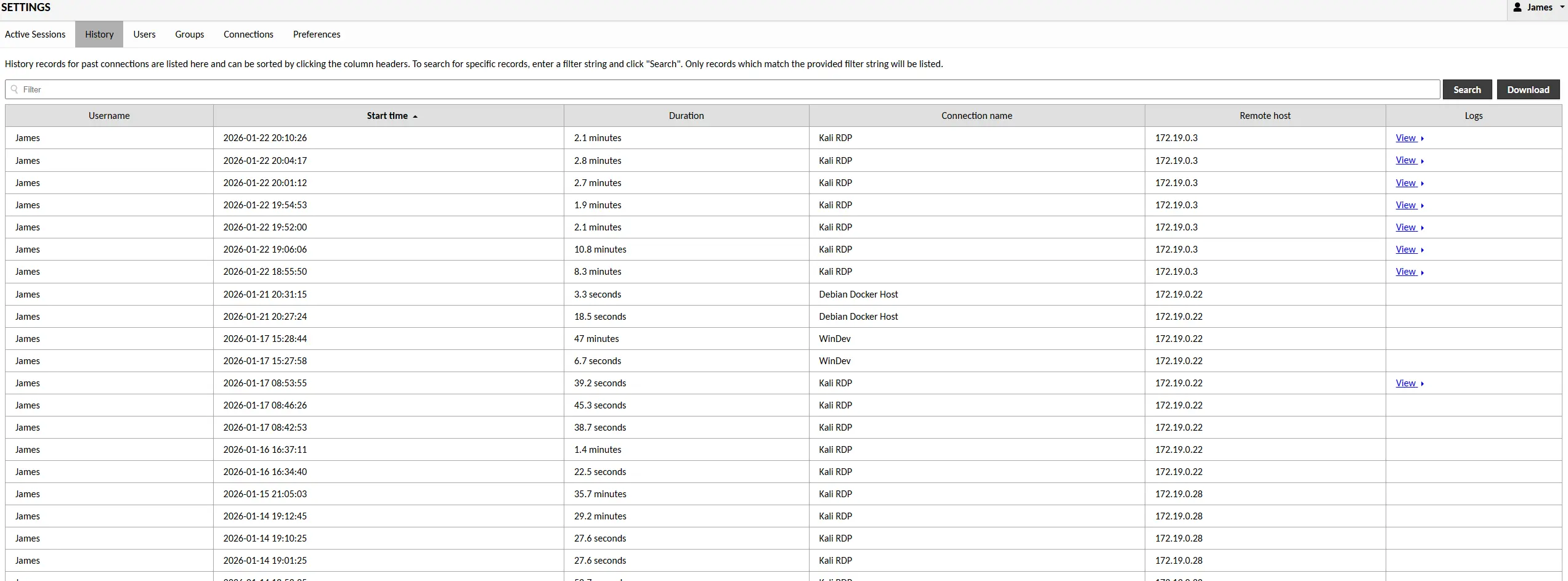
Guacamole maintains a detailed history of all connections, showing who connected to what and when. Combined with the recording features, this provides a complete audit trail for compliance and documentation purposes. Using this session history, it is quick and easy to view any video recording that Guacamole has saved.
Video Recording with Keylogging
For graphical sessions like RDP and VNC, Guacamole provides video recording capabilities. This records the entire session as a video file that can be played back to review exactly what happened on screen.
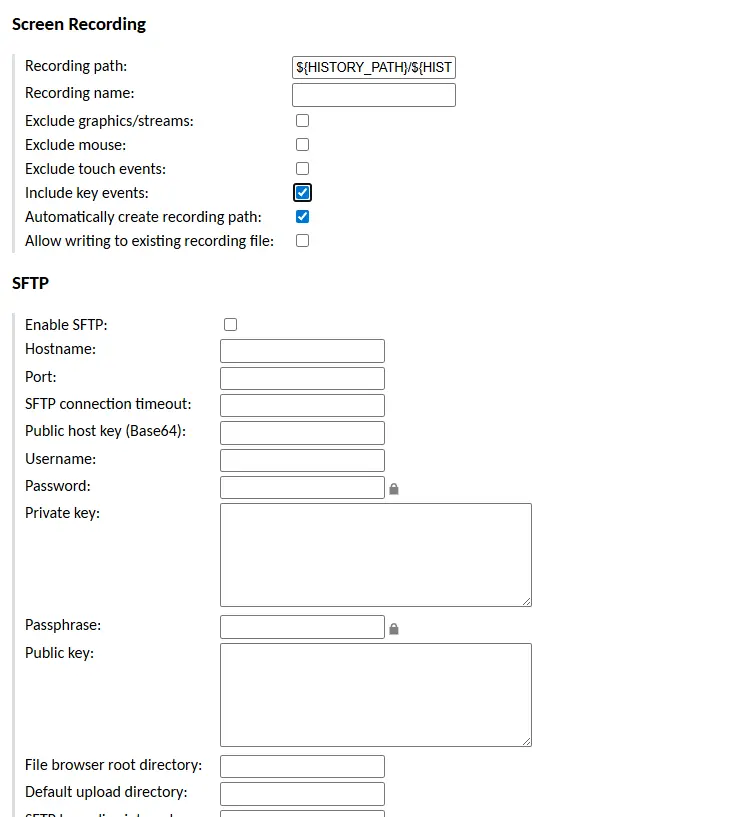
The recording settings allow you to specify where recordings are stored and what format to use. But the real power comes when you combine video recording with keylogging.
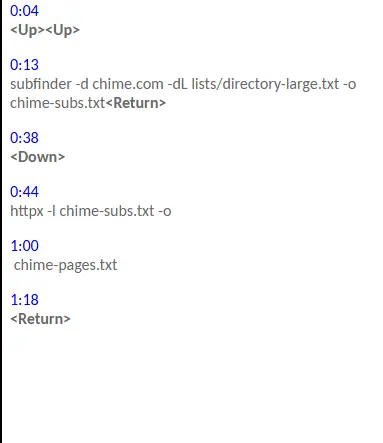
With keylogging enabled alongside video recording, you get a complete picture of the session—not just what appeared on screen, but exactly what was typed. This is invaluable for security training, incident documentation, and malware analysis workflows where you need to recreate or review your exact steps.
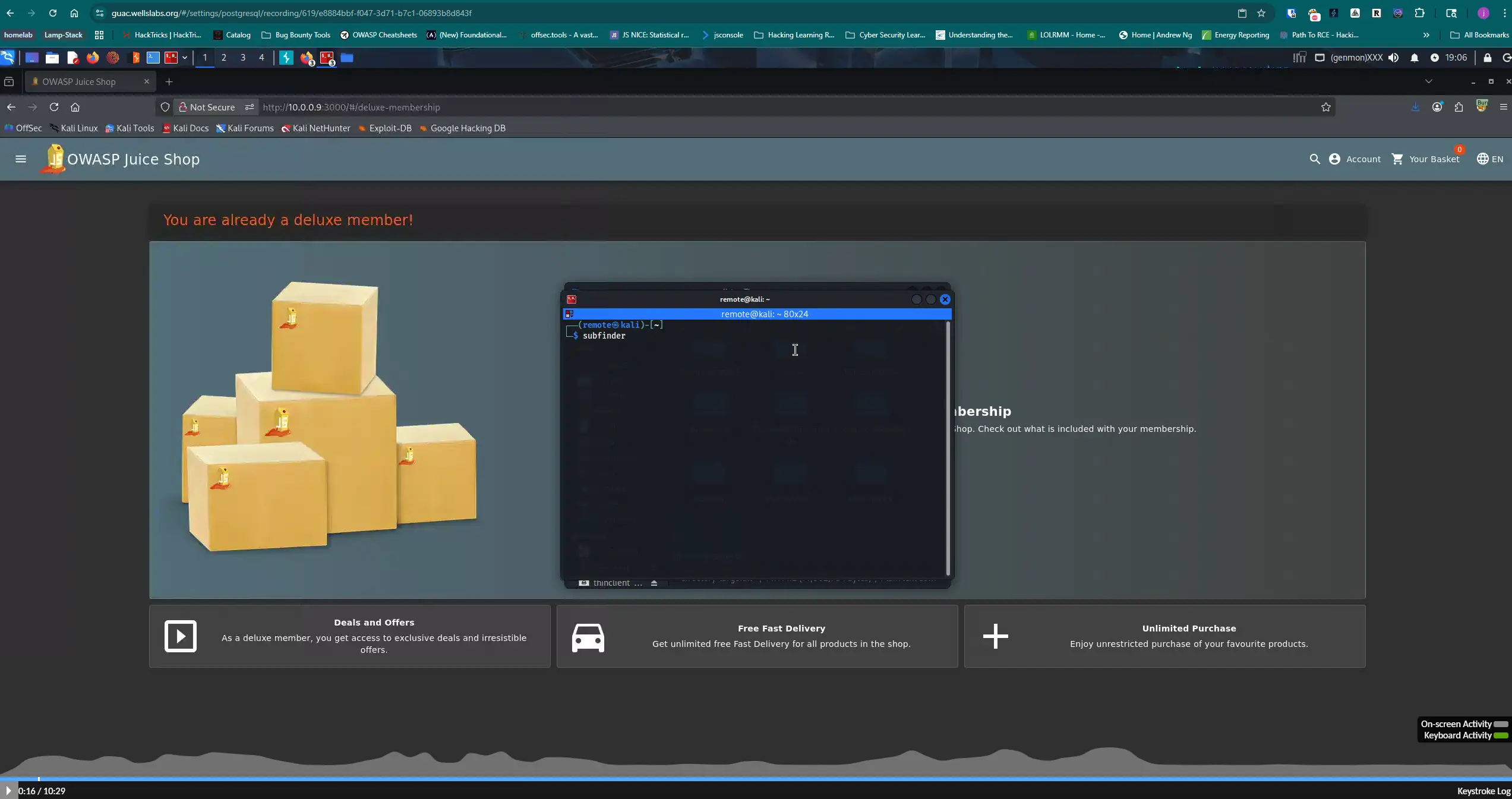
The recordings can be converted and played back using Guacamole’s built-in tools, giving you a full audit trail of every session. They can also be played directly in the Guacamole webUI by clicking play next to the session on the history tab.
More Features
Beyond the core remote access capabilities, Guacamole offers several additional settings that fine-tune the user experience. The Initial Program setting allows you to specify an application that launches automatically when a session starts—useful if you always open the same tool when connecting to a particular machine, like launching a terminal or specific analysis software on your Flare VM.
Display settings let you configure the remote session’s resolution, color depth, and scaling behavior. You can match the remote display to your browser window or set a fixed resolution for consistency. This is particularly helpful when connecting from different devices with varying screen sizes.
Performance settings help optimize the connection based on your network conditions. You can enable or disable features like wallpaper, font smoothing, desktop composition, and window drag animations. Disabling these visual effects reduces bandwidth usage and improves responsiveness, which is especially noticeable on slower connections or when accessing resource-intensive VMs.
Guacamole also includes built-in SFTP support for SSH connections. When configured, you can browse the remote filesystem and transfer files directly through the Guacamole interface without needing a separate SFTP client. This complements the drive mapping feature for RDP sessions, giving you file transfer capabilities regardless of which protocol you’re using.
Accessing an Air-Gapped Flare VM via VNC
One of the more creative uses I’ve found for Guacamole is accessing my Flare VM malware analysis machine that has no network connectivity. Flare VM is a Windows-based security distribution designed for malware analysis and reverse engineering. For obvious reasons, you don’t want your malware analysis machine connected to any network—but that creates a challenge for remote access.
The Problem
My Flare VM runs on Proxmox, and I intentionally removed all network adapters from it to ensure complete isolation.
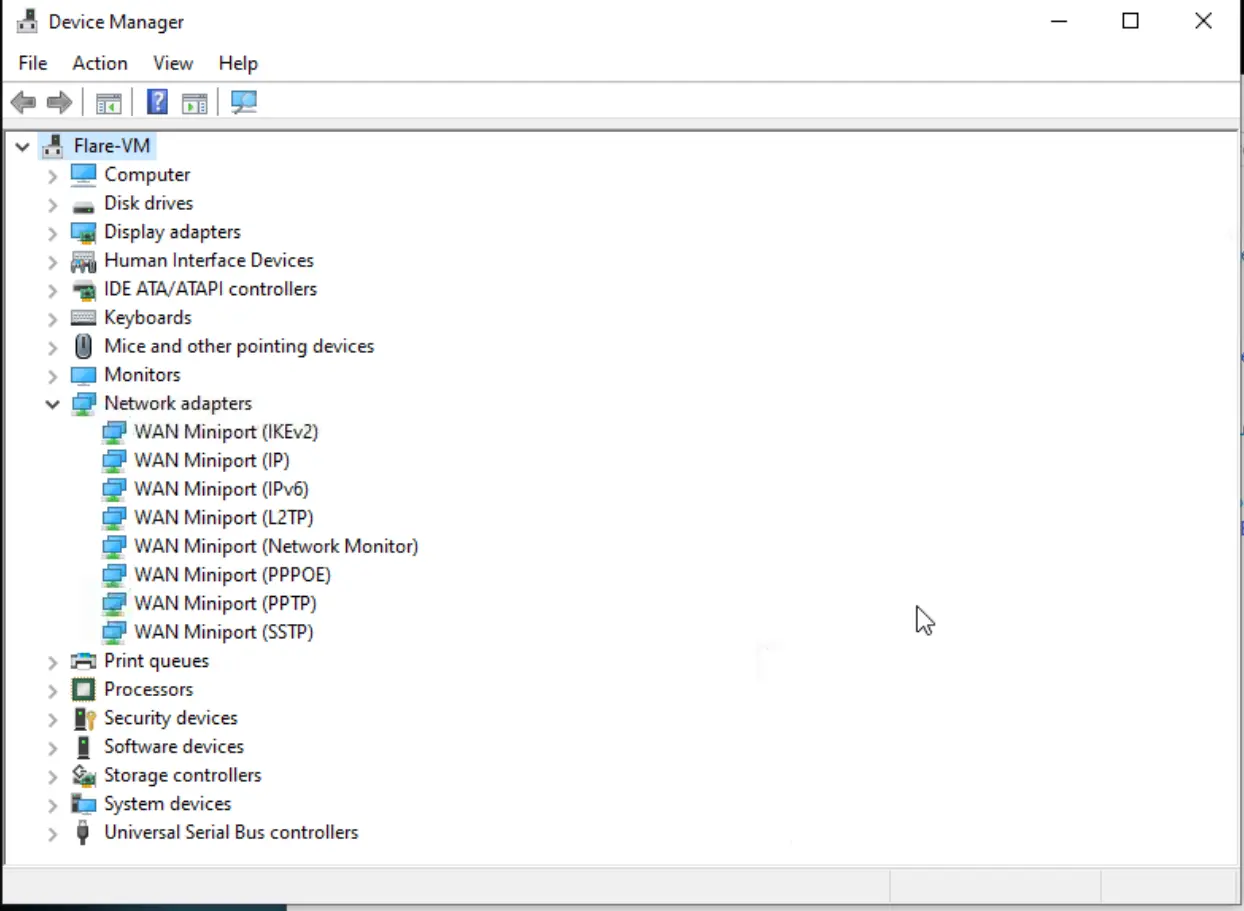
Without any network interfaces, the VM has no IP address and cannot communicate with anything on the network.
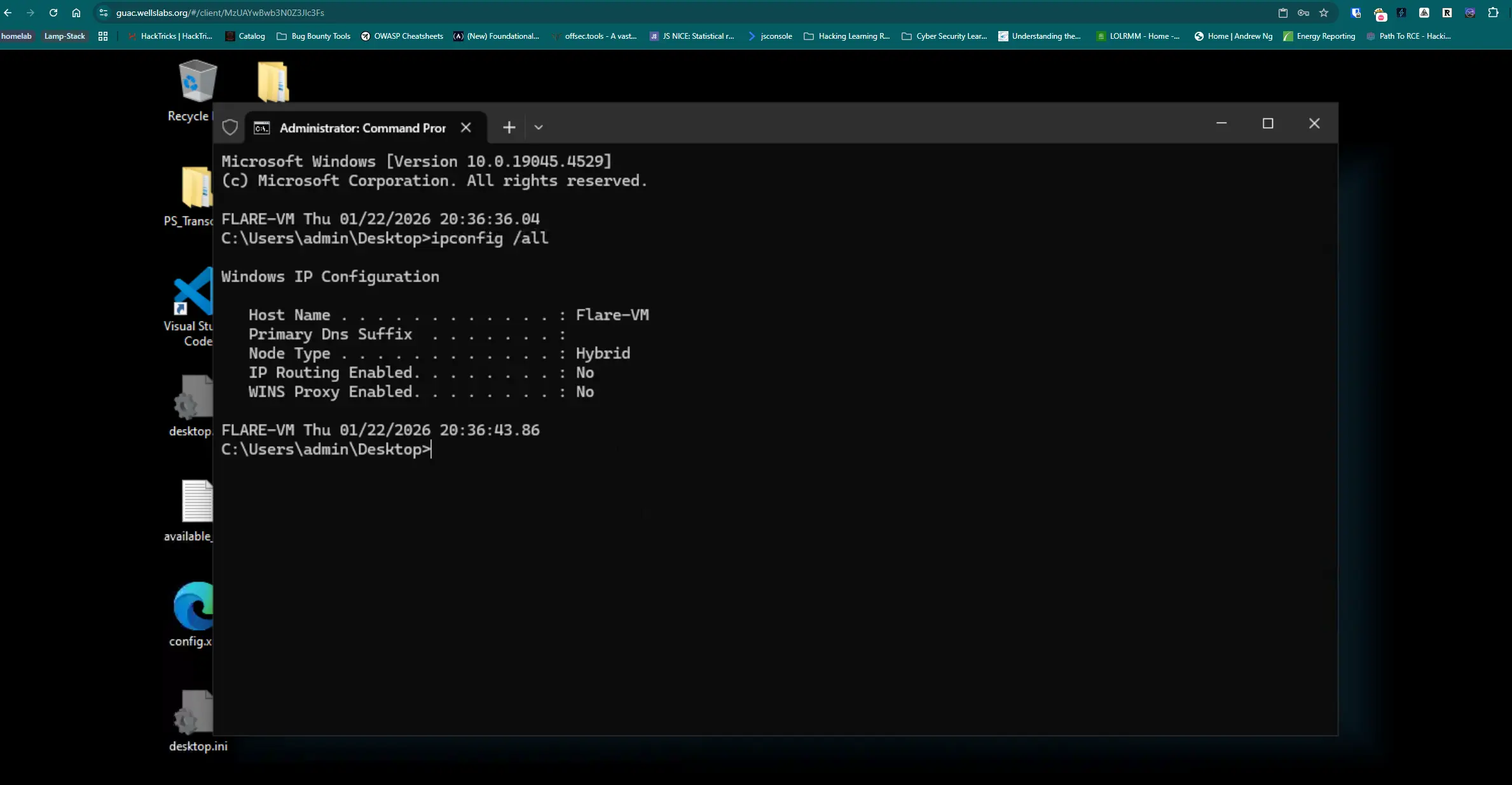
This is exactly what I want for safely detonating malware samples, but it means I can’t use traditional RDP or VNC over the network to access it.
The Solution: Proxmox VNC Socket
Proxmox provides a VNC console for each VM that doesn’t rely on the guest’s network stack. Instead, it uses a Unix socket on the Proxmox host itself. By editing the VM’s configuration file, I can expose this VNC connection in a way that Guacamole can access.
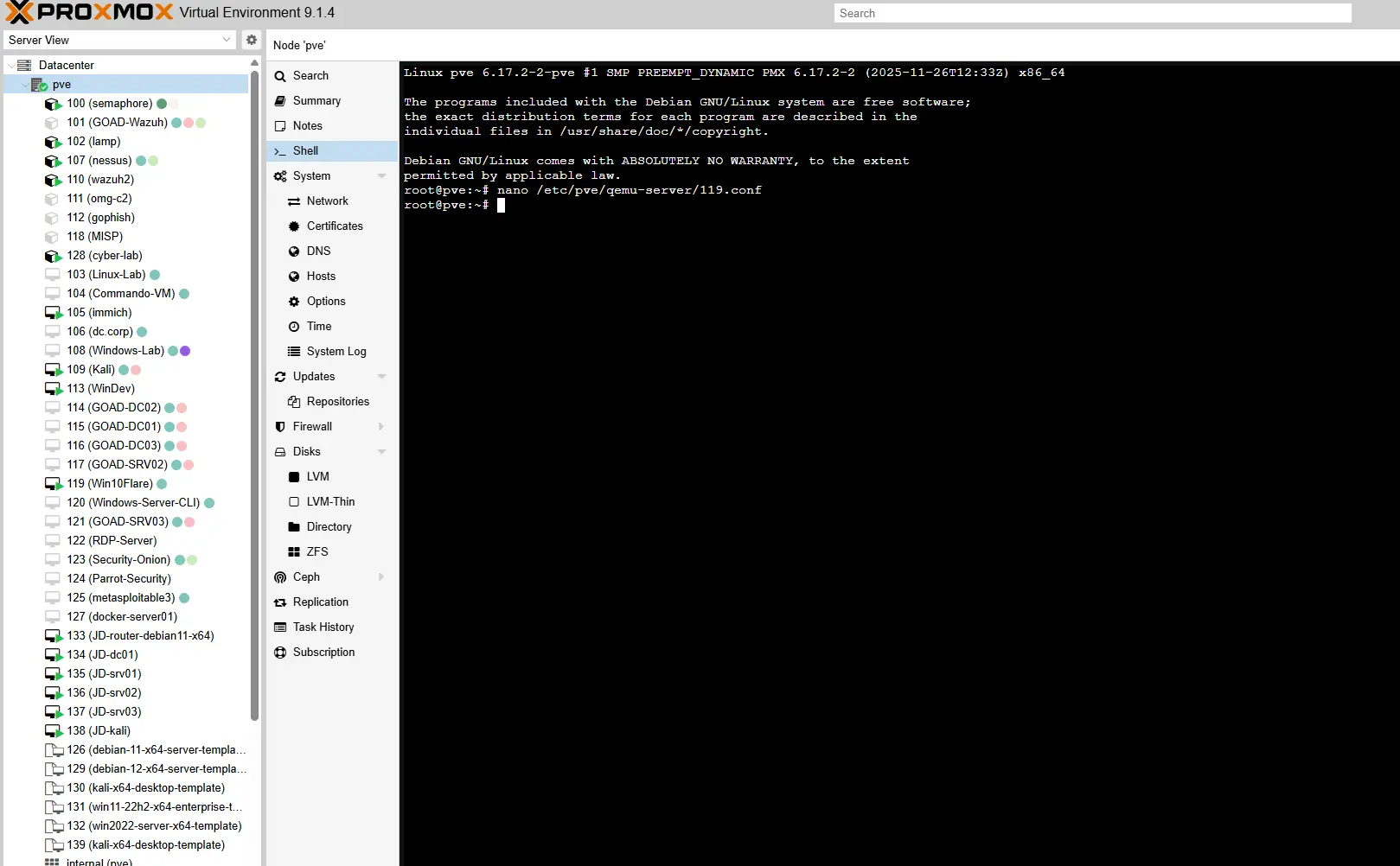
On the Proxmox host, I edited the VM configuration file located at /etc/pve/qemu-server/<vmid>.conf and added the following line:
args: -vnc unix:/var/run/qemu-server/<vmid>.vnc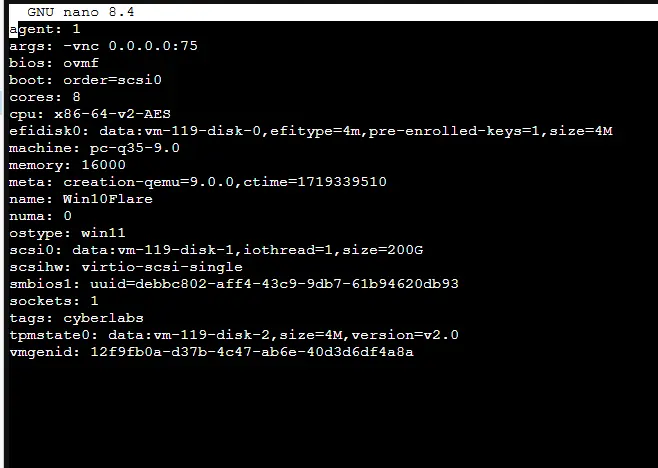
This tells QEMU to create a VNC socket at that path. Since Guacamole runs on the same Proxmox host (or can reach it), I can configure a VNC connection in Guacamole that connects to this Unix socket instead of a network address.
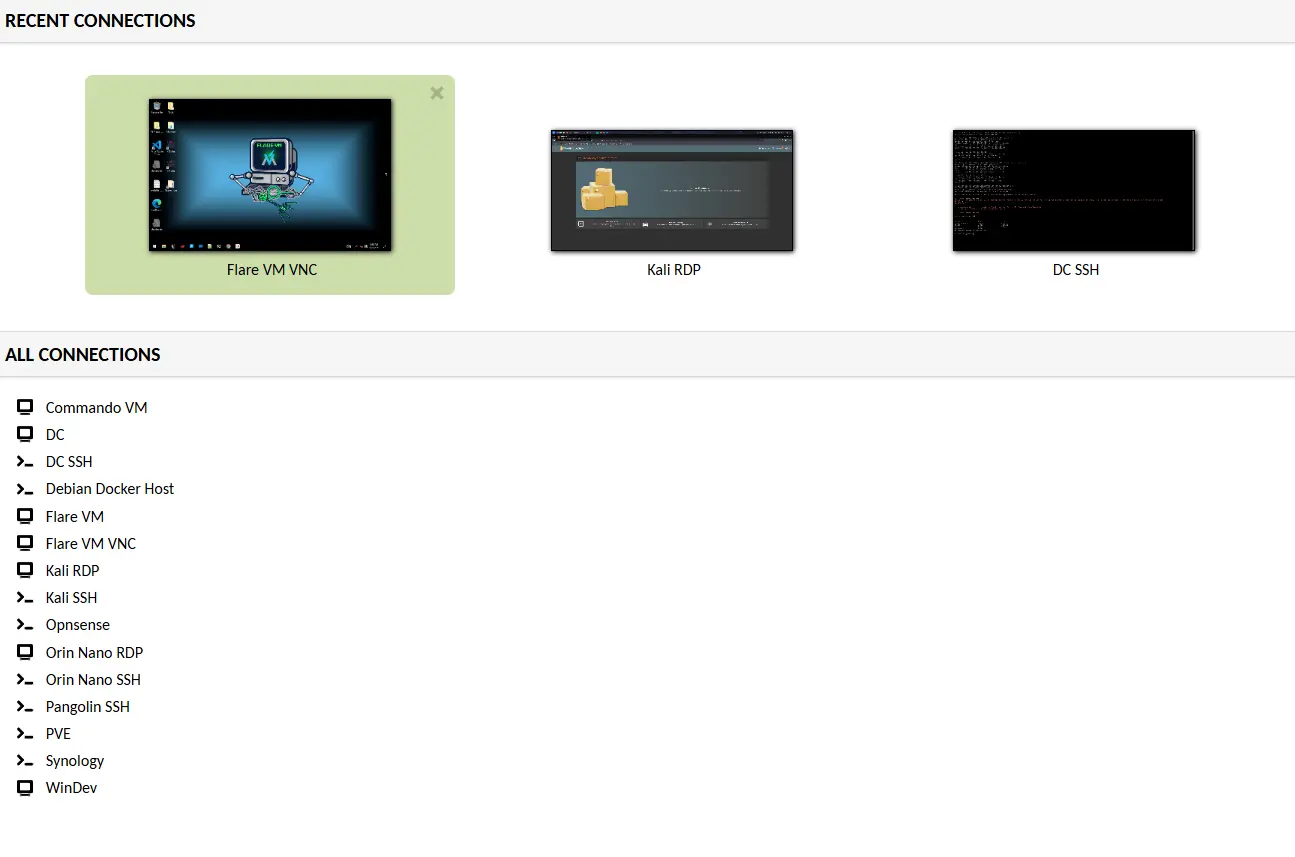
Now I have full graphical access to my completely air-gapped malware analysis VM through Guacamole’s web interface—no network stack required on the guest.
Why This Matters for Malware Analysis
Having an isolated environment that I can easily access gives me confidence when dissecting malware samples. I know that no matter what the malware tries to do—whether it attempts to phone home, spread laterally, or exfiltrate data—it has nowhere to go. The VM has no network adapters, so there’s no possibility of accidental exposure.
At the same time, I’m not sacrificing convenience. Through Guacamole, I can:
- Access the isolated VM from any browser
- Use drive mapping to transfer samples in and artifacts out
- Record my entire analysis session for documentation
- Share access with colleagues when needed
This setup strikes the perfect balance between security and usability. I can analyze the nastiest malware samples without worrying about containment failures, while still having all the modern conveniences of a remote desktop solution.
Before Guacamole: MobaXterm and SSH Tunnels
Before I moved this workflow to Guacamole, I used MobaXterm with SSH tunnels to access the VNC socket. To setup the connection in MobaXterm:
- Open MobaXterm and click Session > VNC
- Set Remote Host to
localhost(since you’re tunneling) - Set Port to
5975(calculated as 5900 + VM ID) - Click the SSH Gateway (jump host) tab under Network Settings
- Set Gateway host to my Proxmox IP (e.g.,
192.168.1.10) - Set Username to
rootand Port to22 - Click OK
MobaXterm would first SSH into the Proxmox server, establish the tunnel securely, and then launch the VNC viewer through that tunnel automatically. This method was more secure because the VNC from Flare was only exposed to the Proxmox host, but it made it so that I had to install MobaXterm on any computer that I want to access Flare VM with. To make the connection more secure than just exposing 0.0.0.0, I added a VLAN to my Proxmox host and only expose it on that VLAN. This separates it from the rest of my network and ensures that I still have easy access to it with my Guacamole server also on that VLAN.
Conclusion
Apache Guacamole has become an essential part of my homelab infrastructure. Its ability to centralize remote access, combined with features like drive mapping, session recording, and the flexibility to connect to unconventional setups like Unix VNC sockets, makes it incredibly versatile. For anyone doing malware analysis or security research, the ability to access an air-gapped VM through a web browser without compromising isolation is a game-changer.